
Appearance
Tips and Tricks: shortcuts that save time in Playbook
These tips help you find things faster and keep your place as you work.
Tips at a glance
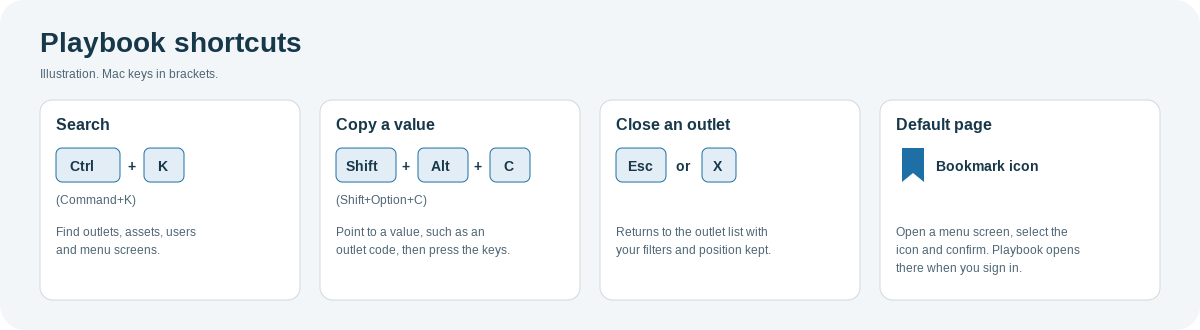
Open the full-size shortcuts diagram.
Search for an outlet, asset, user or screen
Press Ctrl+K (Command+K on a Mac) or select the search box at the top of the screen. Type a name or code to find the outlets, assets, users and menu screens you can access, then select a result to open it. When the box is empty, it lists your most recent results.
The search box appears only on larger screens, not on phones or small tablets.
Copy a value with a keyboard shortcut
Point to a value, such as an outlet name, outlet code or asset serial number, and press Shift+Alt+C (Shift+Option+C on a Mac). The value is copied, ready to paste into a filter, an email or a report.
Close an outlet and keep your place
To leave an outlet, select the close icon (X) or press Esc. You return to the outlet list with your filters and position kept. The browser's Back button does not always keep them. See Outlets.
Choose the page Playbook opens on
Open the menu screen you use most, select the bookmark icon next to the screen title and confirm. Playbook then opens on that screen each time you sign in. To remove it, select the icon again on that screen and confirm.
Save your filters and table layouts
- On Outlets, save the filters you use often as a named preference, and make one your default. See Global View.
- On tables, save your columns, sorting and filters as a preference. See Working with tables.
Related pages
Last updated: November 17, 2026. Screens and options vary with your role and your organization's setup.