Warehouse Activation
Use Warehouse Activation to activate selected devices in bulk. For one-by-one processing with optional validation, use Activation & Validation.
Create activation records for the selected units in Playbook or Portal, individually or by spreadsheet upload. Only selected units are eligible; for example, select the 50 being dispatched from a warehouse holding 1,000 units. See activation selection and template.
Review what activation does and when to do it before starting: it enables daily tracking, uses battery and affects subscription timing. VistaZ Power warehouse activation is optional for unplugged tracking.
Layout
The activation workflow is divided into two main steps: Start Activation and Summary.
1. Start Activation
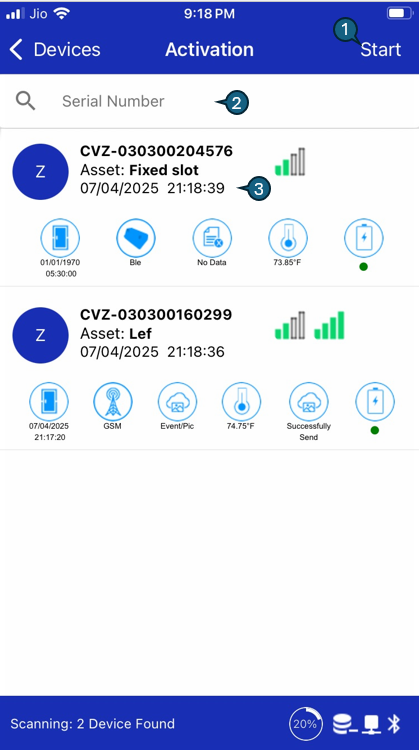
The Start Activation screen allows users to initiate the activation process for smart devices in the warehouse. It provides a user-friendly interface to search for devices, view their status, and start the activation process.
1. Start Button
- Tap Start to scan for devices that match the activation records entered or uploaded in Playbook or Portal.
- The app will display a list of found devices, showing their current status and details.
- The system automatically runs required remote commands to configure and activate the device.
- Once activation is successful, the device is marked as provisioned in the portal and the activation date is updated.
- On subsequent service runs, only devices that have not yet been activated will be processed, ensuring efficient and controlled activation.
2. Serial Number Search
Use the search bar to quickly locate devices by entering the serial number. As you type, the device list dynamically filters to show only matching results, making it easier to find specific devices for activation.
3. Device List
Displays a list of all detected devices, showing their assigned asset, current activation status, and key device details such as BLE, GSM, temperature, and recent events. Device status definitions are consistent with those used in the Diagnostics section.
2. Summary
Once the activation process is complete, an Asset Summary popup appears, offering a concise overview of the activation results for each asset and its linked smart device.
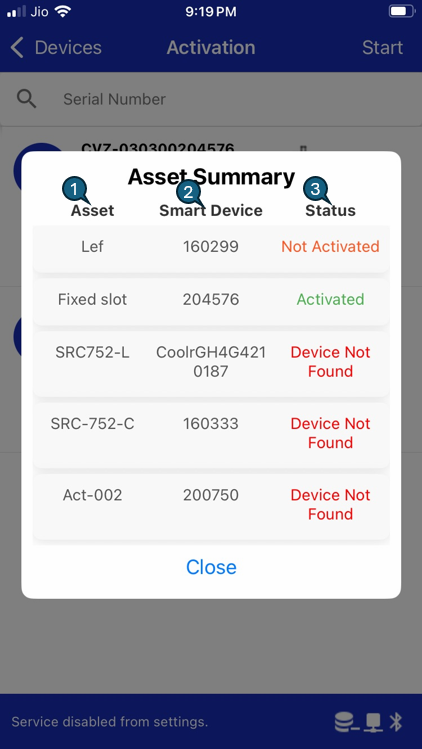
1. Asset
Displays the unique identifier or name of the asset.
2. Smart Device
Shows the serial number of the smart device assigned to the asset.
3. Status
Indicates the activation outcome for each device:
-
Activated (green): Device was successfully activated.
-
Not Activated: Device was not activated during this session.
-
Device Not Found (red): No matching device was detected for the asset.
-
The summary enables users to quickly confirm which devices have been activated and to spot any assets requiring further attention.
-
Tap Close to dismiss the summary and return to the main activation screen.
Continue with dispatch and store assignment.