Client Users
Use the Client Users screen to add, edit, or delete User records.
- Click on the Client Users menu from the left sidebar under Master Setup on CoolR Portal.
- You will see the Client Users screen on the right.
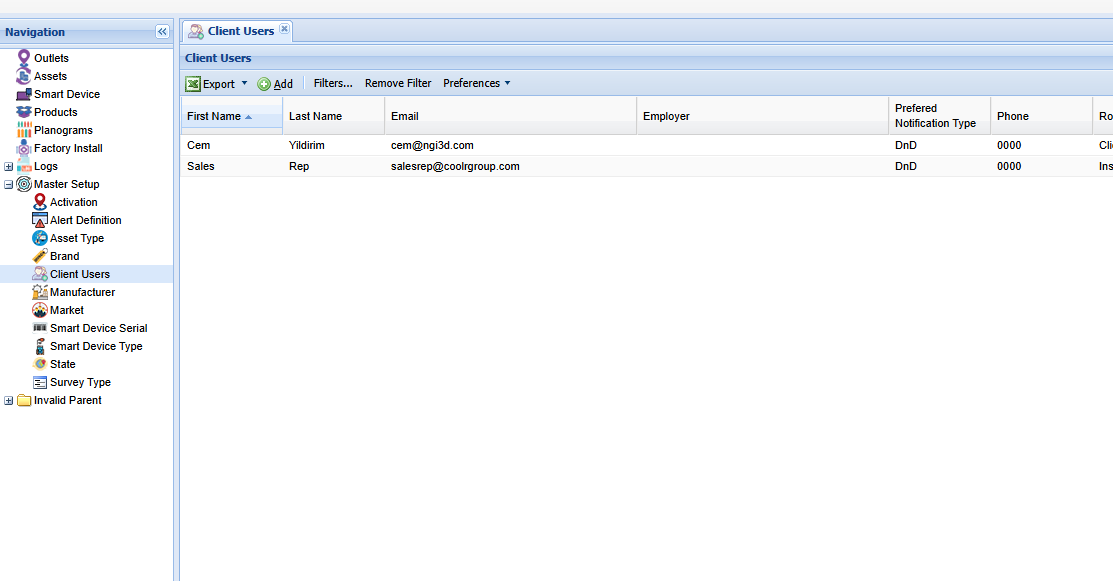
Add New User
Click the Add button on the Actions ribbon. You will see the User Details Form. Fields marked in red are required.
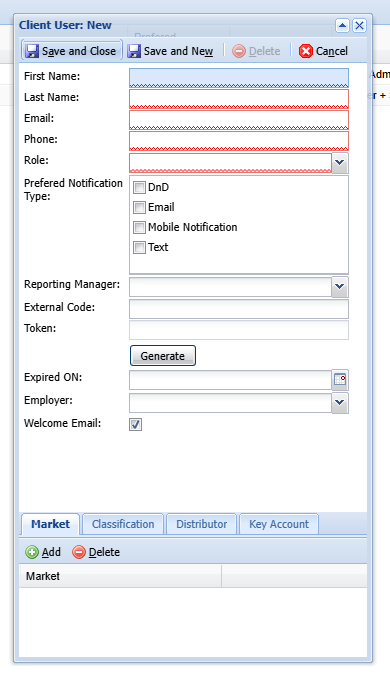
- Complete the required fields.
- Select a role from the dropdown menu to choose from - Client Admin, Sales Rep and Installer.
- Select Save and Close to save the User.
- The new user appears in the list. This user will now have access to CoolR Playbook and Portal.
Edit a User
Double-click the User to open its details form.
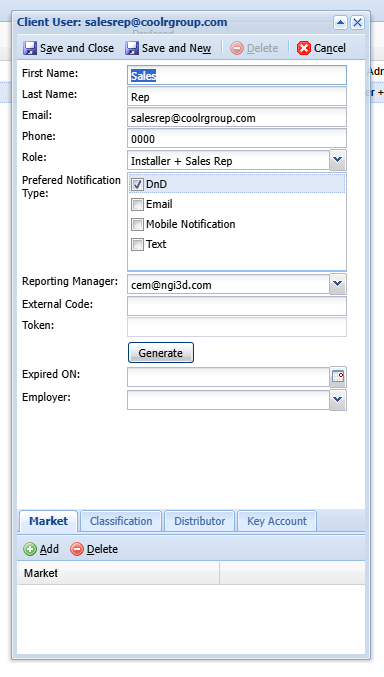
- Update the relevant fields.
- Select Save and Close to save the User.
- The updated record appears in the list.