Planograms
Use the Planograms screen to add, edit, or delete Planogram records.
Click on the Planograms menu from the left sidebar on CoolR Portal. You will see the Planograms screen on the right.
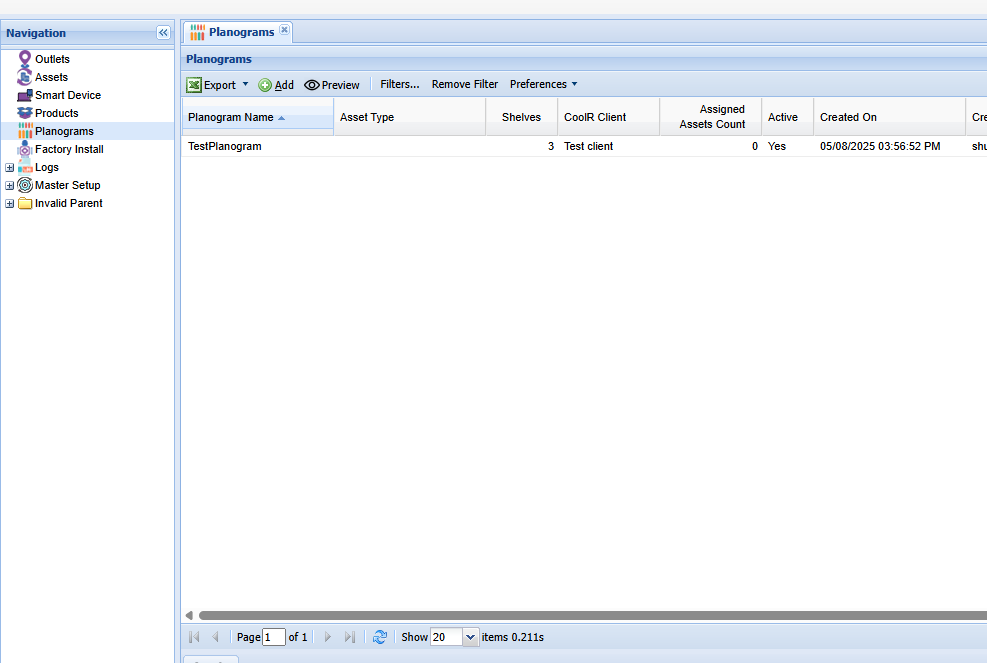
Add New Planogram
Click the Add button on the Actions ribbon. You will see the Planogram Details Form. Fields marked in red are required.
- Select a country to filter the product list.
- The matching products appear on the right.
- Enter the shelf count. The shelves appear on the left.
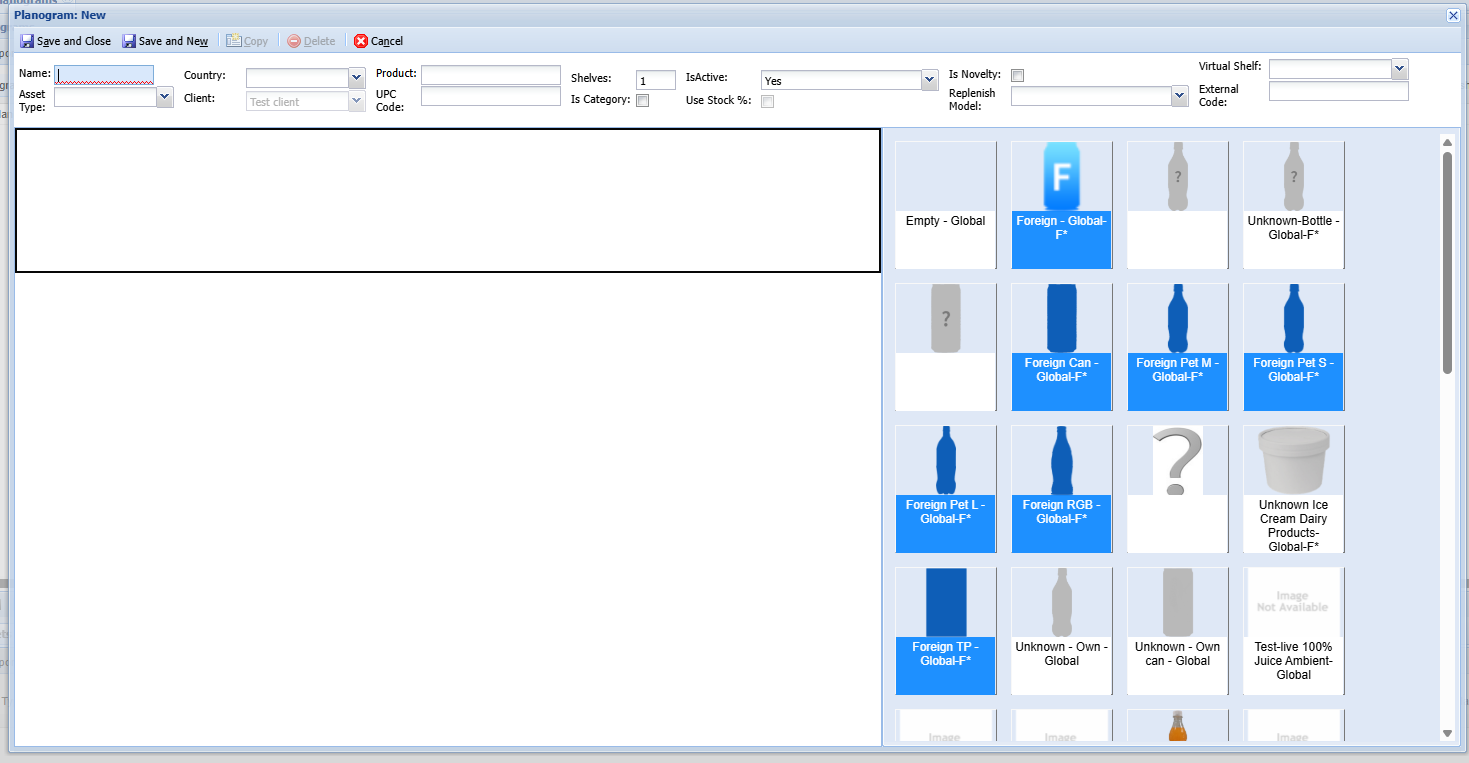
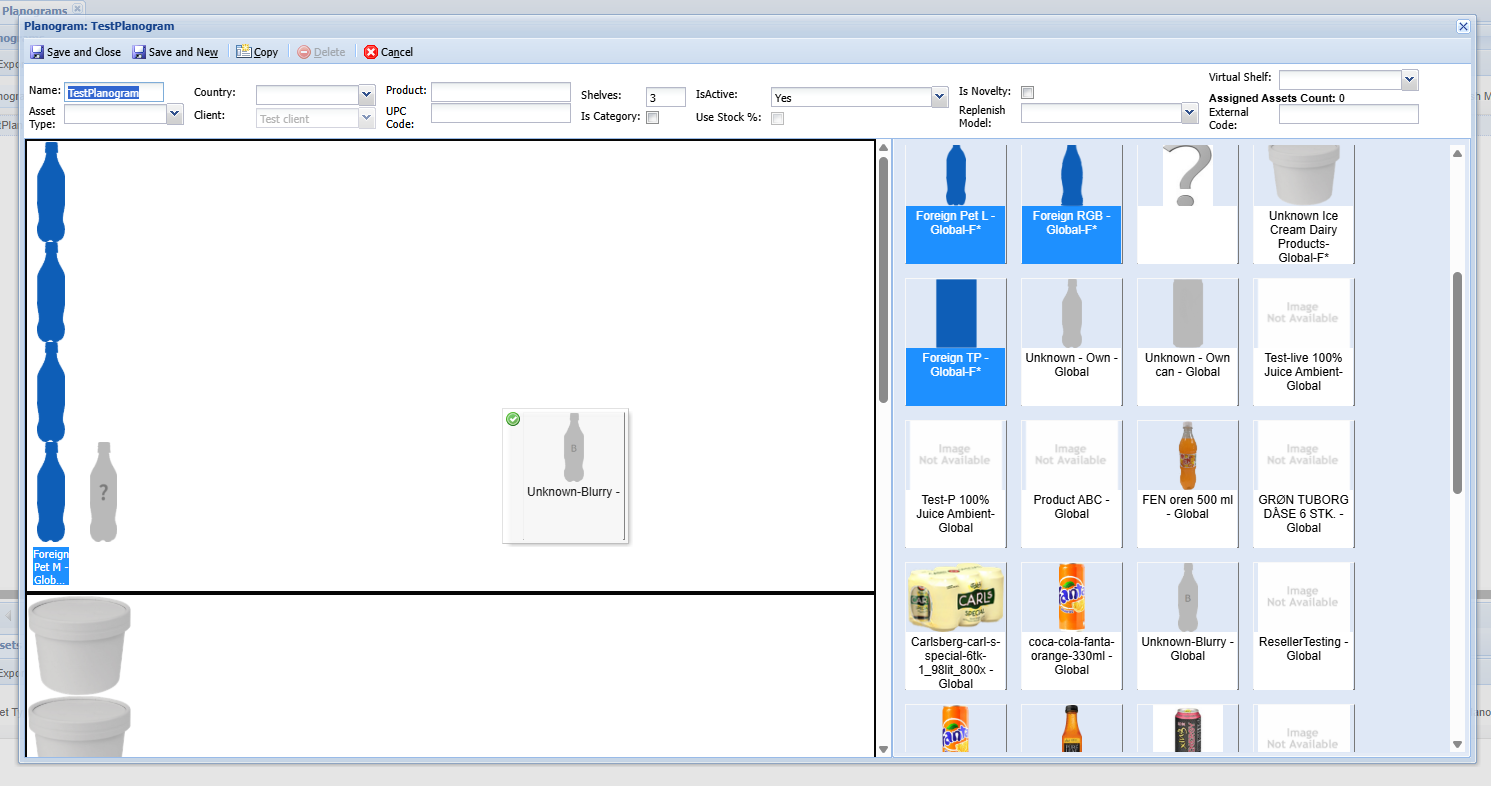
- Use drag and drop to arrange products.
- Drag each product from the right panel to its position on the appropriate shelf.
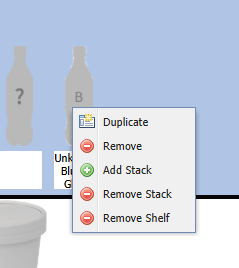
You can right-click on any product image on the left to duplicate, remove or add a stack.
Select Save and Close to save the planogram. You will see the new Planogram in the Planograms screen.
Edit Planogram
Double-click the Planogram to open its details form.
- Update the relevant fields.
- Select Save and Close to save the Planogram.
- The updated record appears in the list.