Products
Use the Products screen to add, edit, or delete Product records. Product Images can be added or modified from that screen.
Click on the Product menu from the left sidebar on CoolR Portal. You will see the Product screen on the right.
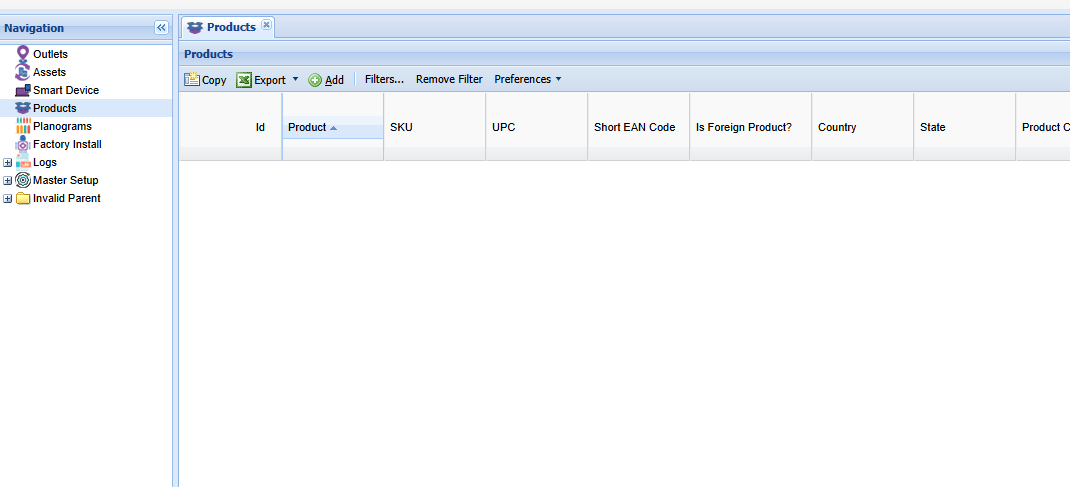
Add New Product
Click the Add button on the Actions ribbon. You will see the Product Details Form. Fields marked in red are required.
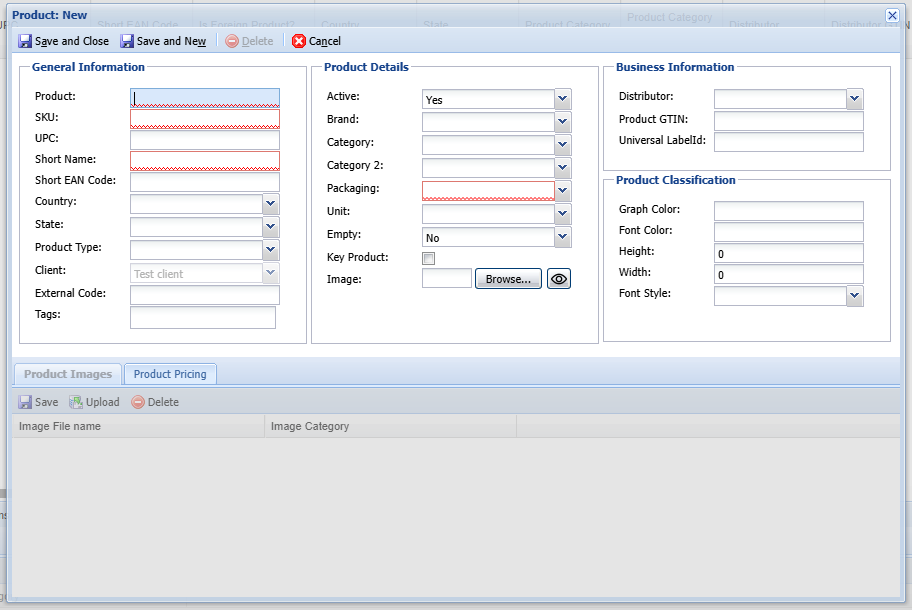
- Complete the required fields.
- If a required dropdown option is missing, add it under Master Setup > Dropdown Menu.
- Select Save and Close to save the Product. Add product images after saving.
- The new Product appears in the list.
Add New Image
Double-click the saved product to enable the Product Images section at the bottom of the form.
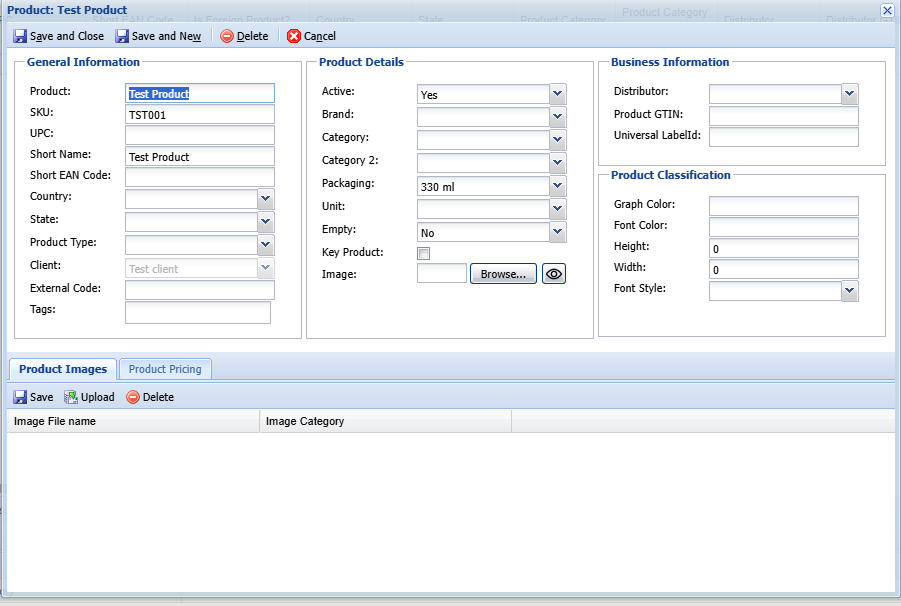
- Click Upload button in the Product Image section.
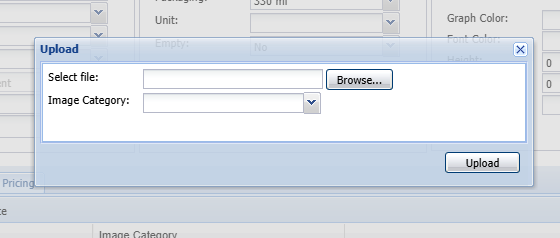
- The Upload screen opens.
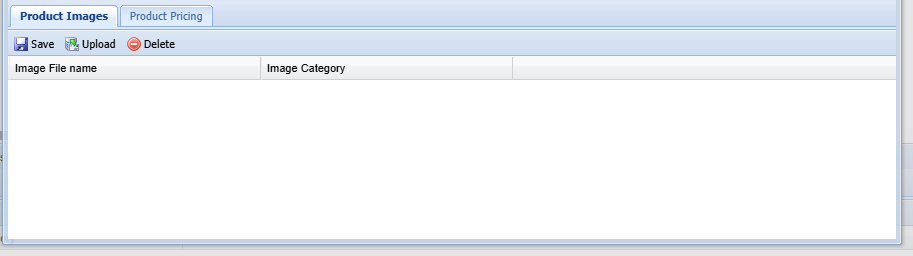
- Click browse and select your image file (PNG or JPEG) from your computer.
- Select Image Category and click Upload button.
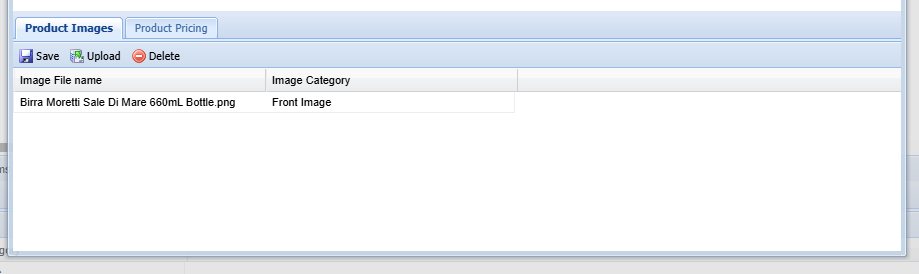
- The uploaded image appears in the list.
- Click Save and Close button from the form.
Edit a Product
Double-click the Product to open its details form.
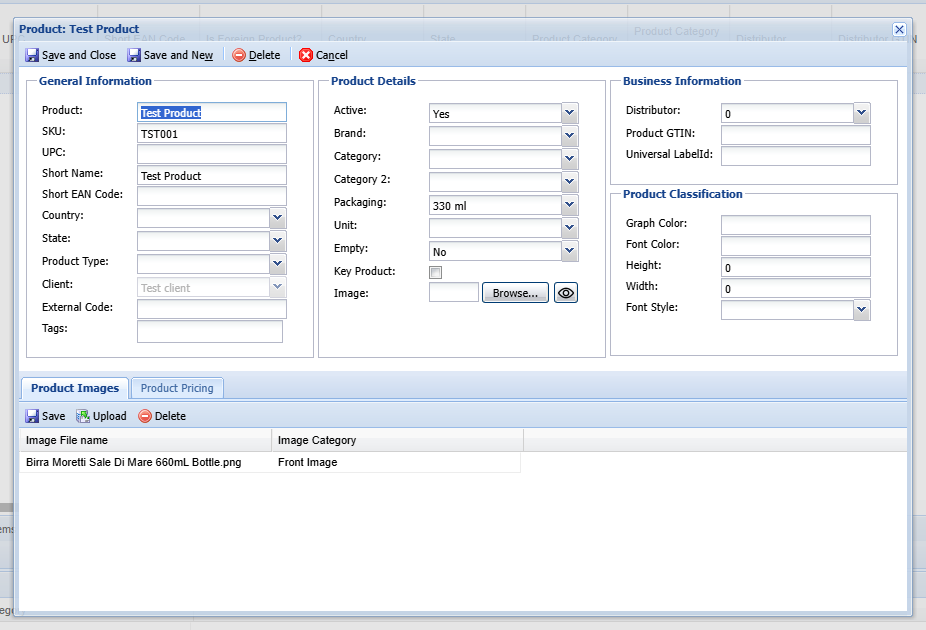
- Update the relevant fields.
- Select Save and Close to save the product.
- The updated record appears in the list.