
Appearance
System Alerts - Overview
System alerts report problems with devices, images and data: a camera that stops communicating, a device that is not assigned, a low battery, too many or too few images, or a device error. CoolR raises them automatically. Unlike merchandising alerts, they need no alert definition. This page lists each system alert, when it opens and when it closes.
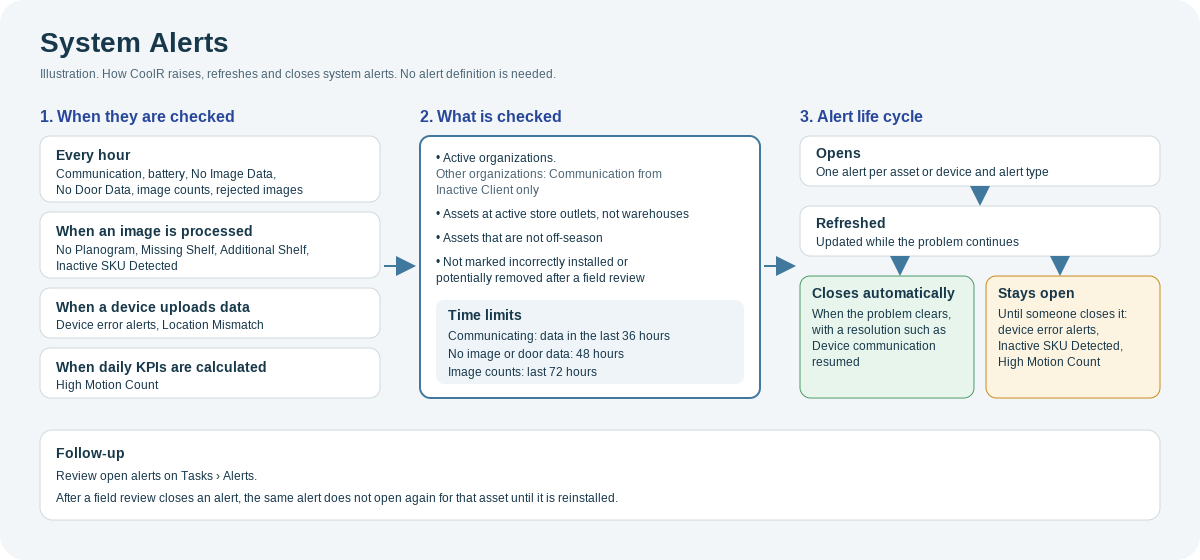
Open the full-size System Alerts diagram.
How system alerts work
- When they are checked: most system alerts are checked every hour. The others are raised as data arrives: when an image is processed, when a device uploads data, or when daily KPIs are calculated. Each table below says when its alerts are checked.
- Which assets: assets at active store outlets. Warehouse outlets are not checked. An asset that a field review marks as incorrectly installed or potentially removed is skipped until it is reinstalled.
- Time limits: a device is communicating when it has sent data in the last 36 hours. Image and door checks use the last 48 hours, and image counts use the last 72 hours. Image count alerts wait 36 hours after an installation.
- Off-season: an asset whose subscription is set to no images (off-season) does not raise No Communication or High Number of Rejected Images. An off-season Retrofit asset also does not raise No Image Data or No Door Data; an OEM asset still does.
- One open alert at a time: each asset or device has at most one open alert of each type. The alert is refreshed while the problem continues. Most alerts close automatically with a resolution, such as Device communication resumed, when the problem clears. Alerts that stay open until someone closes them are marked below.
- Closed after a field review: when an alert is closed with a field diagnosis such as an incorrect installation, the same alert does not open again for that asset until it is reinstalled.
Communication alerts
Checked every hour.
| Alert | Opens when | Closes when |
|---|---|---|
| No Communication | An asset at an active store outlet has not communicated for 36 hours. Applies to Retrofit and OEM assets. | The asset communicates again. |
| Communication Without Assignment | A device that must communicate has communicated in the last 36 hours, but it is not linked to an asset at an active store outlet. Also raised for a communicating OEM asset that is not at an active store outlet. | The device is assigned to an asset at an active store outlet, or it stops communicating. |
| Communication from Inactive Client | A device or OEM asset has communicated in the last 36 hours, but its organization is not active. | The organization becomes active, or the device stops communicating. |
| Modem Unplugged but Still Working | A Retrofit camera is communicating, but its powered gateway (modem) is not charging and its backup battery is at 60% or less. | The gateway is charging again, or its battery is above 60%. |
Communication Without Assignment also suggests what to do:
| Situation | Recommended action |
|---|---|
| The device is not linked to an asset. | Assign the device to an asset or an active outlet. |
| The asset is at an inactive outlet. | Activate the outlet. |
| The asset is at a factory or warehouse outlet. | No action. |
Battery alert
Checked every hour.
| Alert | Opens when | Closes when |
|---|---|---|
| Vista Insufficient Battery | A Retrofit camera has communicated in the last 36 hours, and its battery at the latest image is below the alert level for its device model. | The battery is back at or above the alert level, or the camera stops communicating. |
Image and door alerts
| Alert | Checked | Opens when | Closes when |
|---|---|---|---|
| No Image Data | Every hour | The asset is communicating, but no image has arrived for 48 hours. | A new image arrives. |
| No Door Data | Every hour | As for No Image Data, but the asset type has a door (handle on the left or right) and there has been no door activity for 48 hours. It replaces No Image Data for that asset. | A new image or door activity arrives. |
| High Image Count | Every hour | In the last 72 hours, the asset sent more than four times the image count of its subscription (more than 4 images for a subscription of 1). The asset must have communicated and sent an image in the last 36 hours. | The image count is back within the limit. |
| High Number of Rejected Images | Every hour | Two or more images were rejected in the last 72 hours. The asset must have communicated and sent an image in the last 36 hours. | Fewer than two images were rejected in the last 72 hours. |
| No Planogram | When an image is processed | An image from an asset at an active store outlet is rejected because the asset has no planogram. | A later image is processed with a planogram, for example after a planogram is assigned. |
| High Motion Count | When daily KPIs are calculated | An asset records more than 200 motion events in a day (today or yesterday). | Stays open until someone closes it. |
Shelf and product alerts
Checked when an image is approved.
| Alert | Opens when | Closes when |
|---|---|---|
| Missing Shelf | The latest approved image shows fewer shelves than the planogram. Asset types without a door are not checked. | A newer approved image shows the same number of shelves as the planogram. |
| Additional Shelf | The latest approved image shows more shelves than the planogram. Asset types without a door are not checked. | A newer approved image shows the same number of shelves as the planogram. |
| Inactive SKU Detected | An approved image from the last 7 days shows a product that is inactive in your products. One alert per product and asset; newer images update it. | Stays open until someone closes it. |
Location alert
Checked when a device reports its position.
| Alert | Opens when | Closes when |
|---|---|---|
| Location Mismatch | The asset's GPS position, less its accuracy, is further from its outlet than the displacement threshold. The threshold is set on the asset, or else for the organization, or else the CoolR default. | The asset is back within the threshold. |
Device error alerts
Raised when a device uploads data. One alert per device; each new error refreshes it. A later healthy upload does not close it: it stays open until someone closes it.
| Alert | Opens when |
|---|---|
| Device Clock Wrong | A device sends events or an image with a time too far in the future, or invalid event times. Devices with a low battery are not checked. |
| Invalid Image Received | An image cannot be decoded. Partial uploads and images from devices with a low battery are not checked. |
| Device IMEI Changed | The modem IMEI reported by a gateway changes. |
| Device Authentication Failed | A device upload fails authentication. |
| Device Firmware Data Error | Data from a device cannot be read because of a firmware data error. |
| Auto DFU Disabled | A device is below its target firmware and a newer firmware is available, but automatic firmware updates are turned off for it. |
Alert types that are not raised
Battery Depletion and Rejected Image No Planogram are listed as alert types, but no process raises them. For images rejected because there is no planogram, see No Planogram.