Reinstall
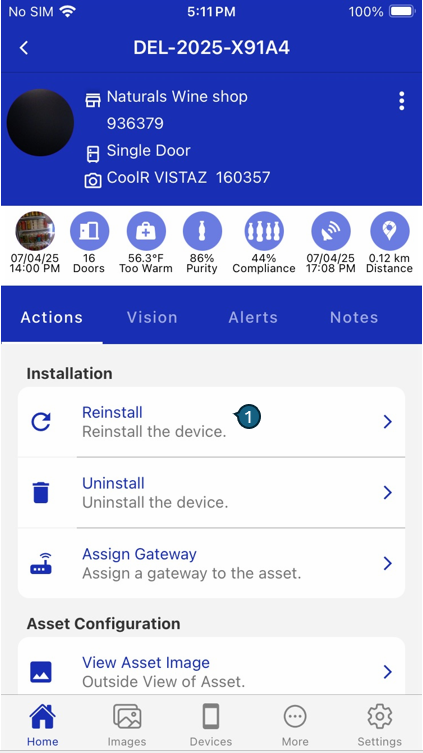
If a smart device is already linked to the asset, the Reinstall option appears in the Actions tab.
This feature allows you to reassign, re-provision, or reconfigure an existing camera for the currently selected asset, whether the device is in use at another location or stored in the warehouse.
Layout
| 
1. Actions Screen
Open Actions and select Reinstall.
2. Add Asset Screen
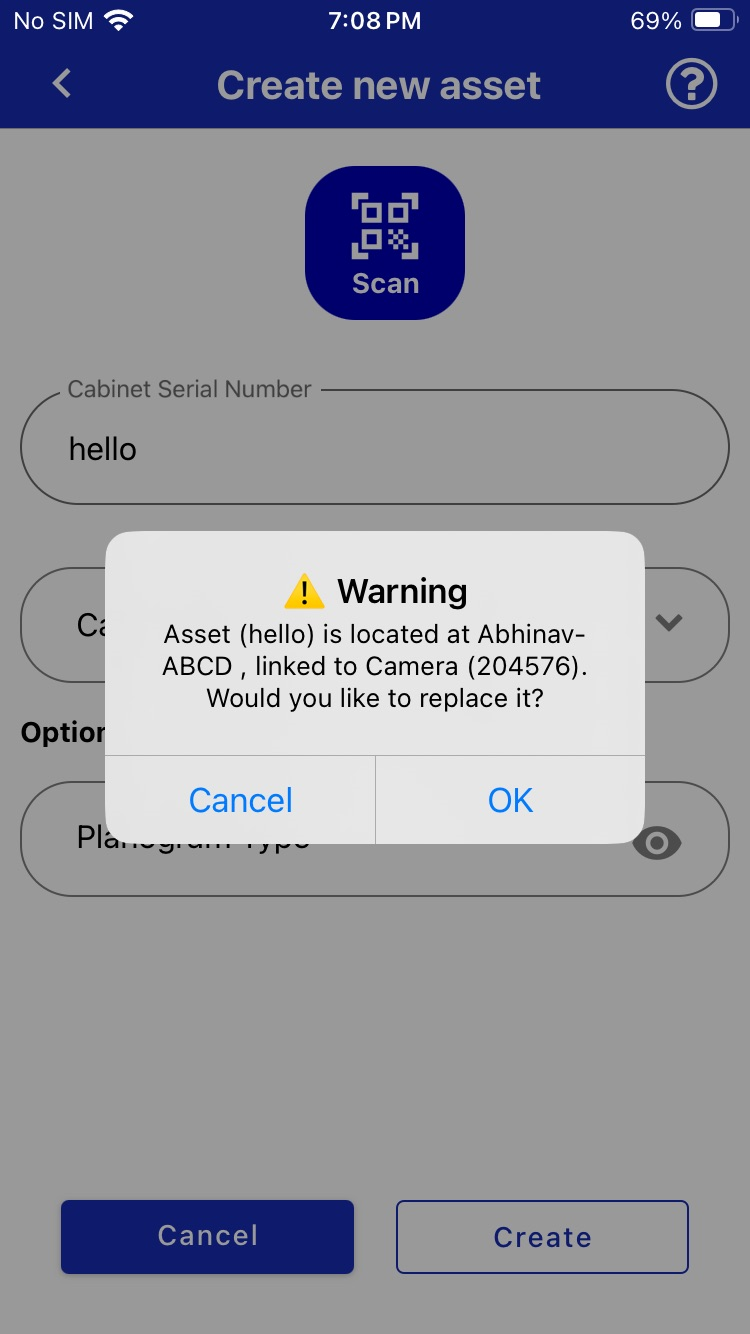
When you select a device already associated with another asset, the app displays a prompt based on its current location:
-
Info Prompt:
If the linked asset is at a warehouse location type, an informational prompt appears. This indicates the asset is available for reassignment without any conflicts, allowing you to proceed smoothly. -
Warning Prompt:
If the linked asset is at a store location type, a warning prompt appears. This notifies you that the device is currently at an active store location.
Warehouse functionality is available only to clients with warehouse access. The installation process will follow the same steps as described in the Install section.