Install Summary
The Installation Summary screen is the final step in the installation wizard. It provides a confirmation of successful installation.
Layout
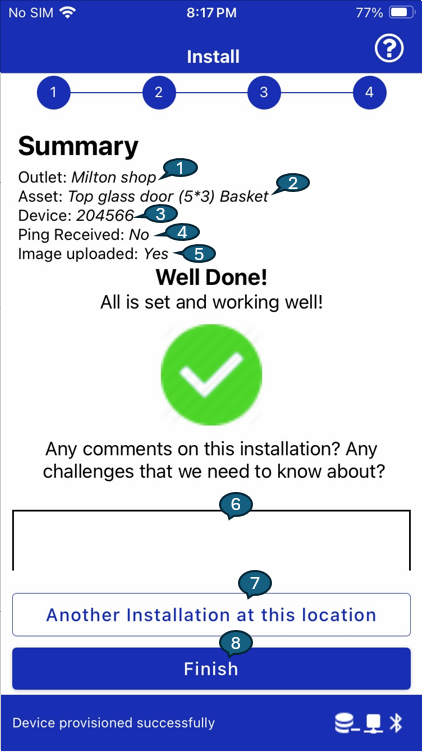
1. Outlet Name
Displays the name of the outlet where the installation was performed (e.g., Milton shop).
2. Asset Type
Shows the type or description of the asset (e.g., Top glass door (5*3) Basket) to which the camera was installed.
3. Device Serial Number
Displays the serial number of the assigned camera/device for traceability.
4. Ping Status
Indicates whether a ping response was received from the camera (Yes/No). Helps validate communication.
5. Image Upload Status
Confirms whether the image taken during installation was successfully uploaded.
6. Notes
An optional text area where the installer can enter any observations, installation challenges, or remarks. these notes will be visible on location detail page.
7. Another Installation at this Location
This button allows the user to immediately begin a new installation for another asset at the same outlet without restarting the full flow.
8. Finish Button
Completes the installation process and returns the user to the dashboard or starting point.
Functional Behavior
- All key installation parameters are summarized for review.
- The user can add optional notes or feedback before submitting.
- Tapping Finish completes the session, while Another Installation reopens the flow for multi-asset scenarios at the same location.