Camera Connection
The Camera Connection screen is the second step in the installation wizard. It is used to validate the connected camera and ensure its core health parameters are good before proceeding.
Layout
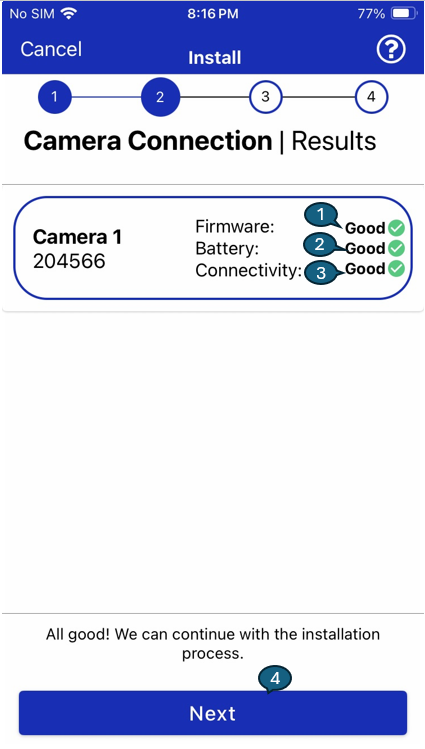
1. Firmware
Displays the current firmware health of the connected camera. A status of "Good ✅" means the firmware is up to date and compatible with the installation process.
2. Battery
Indicates the battery level of the camera. A "Good ✅" status ensures the device has sufficient power to proceed with installation and operation.
3. Connectivity
Shows the signal strength or connectivity level of the camera. A "Good ✅" value means the device has acceptable RSSI/network signal for communication.
4. Next Button
The Next button appears once all checks are successful. When pressed, it advances to the next step in the installation process.
Functional Behavior
- All camera parameters (Firmware, Battery, and Connectivity) must show a "Good" status to continue.
- A status summary such as “All good! We can continue with the installation process.” confirms readiness.
- If any of the checks fail, this screen will typically show a warning or block progression until resolved.