
Appearance
Reorder: order movement and credit hold
Use Reorder to review suggested orders, schedule them for fulfillment, and follow their progress. Available actions depend on your permissions and your account's configuration.
Order movement at a glance
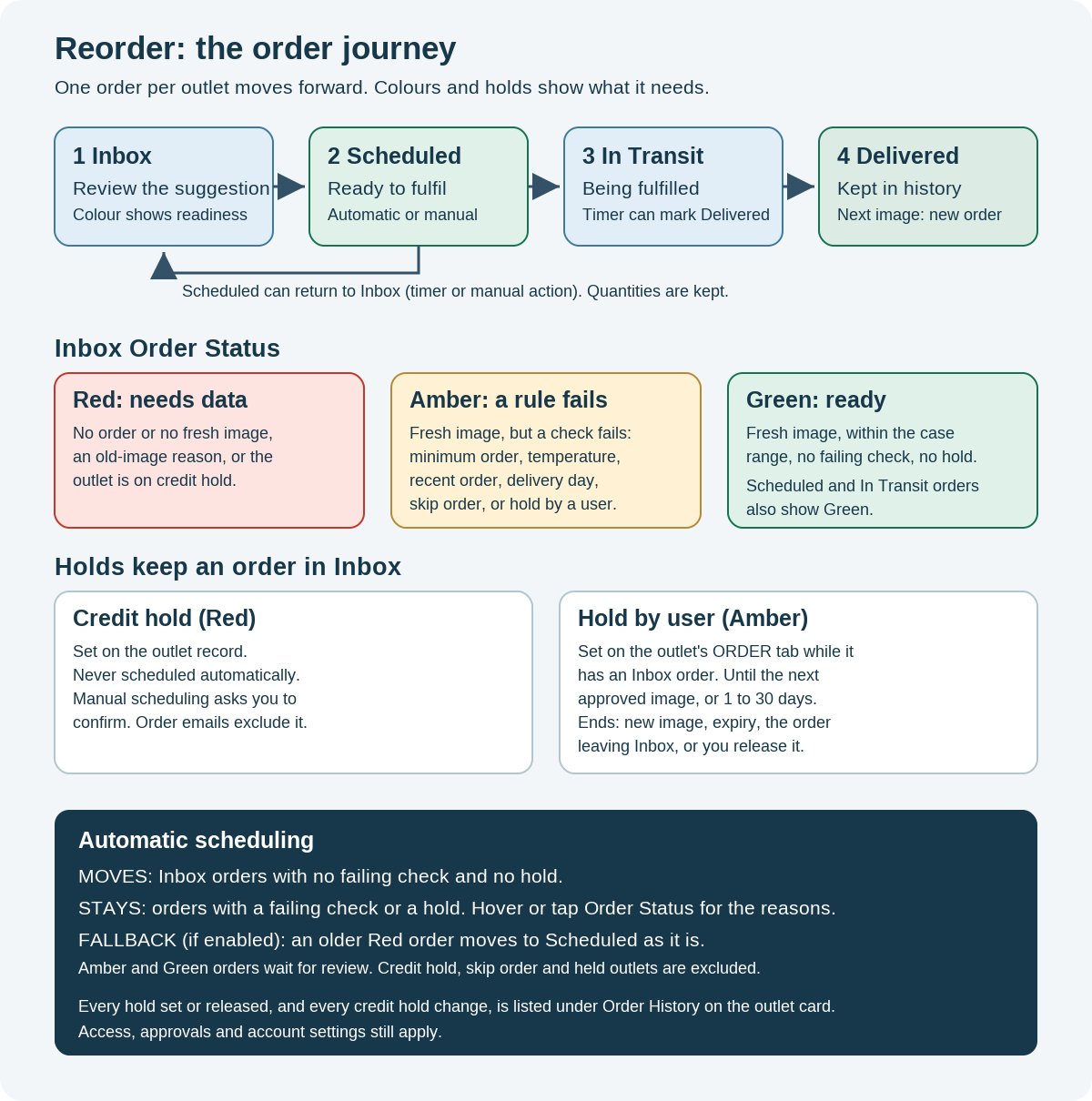
Open the full-size order-flow infographic.
| State | What it means | What happens next |
|---|---|---|
| Inbox | An order suggestion is available for review. | Review or edit it, hold it, or move it to Scheduled. Configured automation schedules eligible orders. |
| Scheduled | The order is selected for fulfillment. | Configured reports and distributor integrations can process it. A configured integration, timer or authorized action can move it to In Transit, or back to Inbox. |
| In Transit | Fulfillment is in progress. | Record delivery, or let the configured timer mark it Delivered. |
| Delivered / order history | Delivery is complete. | Review the completed order in history. The next approved image starts a new order. |
Moving an order back to Inbox does not recalculate its quantities. Review them before scheduling again.
Order Status colours
On the Inbox tab, Order Status shows whether an order is ready. Hover over it, or tap it on mobile, to see the reasons.
| Colour | Meaning |
|---|---|
| Red | Data is missing: no order, no fresh image, an old image, or the outlet is on credit hold. |
| Amber | The image is fresh, but a check fails: minimum order, temperature, recent order, delivery day, skip order, or no products. A hold by a user is also Amber. A user hold without a fresh image stays Red. |
| Green | The image is fresh, the order is within the case range, and nothing fails or holds it. Scheduled and In Transit orders show Green. |
An order can have several reasons at once. The Order Status and Order Hold Status columns appear on the Inbox tab only.
Holds
A hold keeps an outlet's order in Inbox. Held outlets are never scheduled automatically, and fallback skips them. The Order Hold Status column shows one value: Credit Hold, then On Hold by User, otherwise blank. Hover over it to see who set the hold and when.
- Credit hold is set on the outlet record. See the next section.
- Hold by user is set from the outlet's ORDER tab while the outlet has an Inbox order. Choose Until next approved image (the default) or 1 to 30 days.
A hold by user ends when:
- a new approved image arrives (holds set until the next image only),
- the hold period expires,
- the order leaves Inbox, or
- you release it by choosing None.
The outlet card's ORDER HISTORY tab lists every hold set or released, and every credit hold change, under the order history: when, type, action, hold status, hold until, and who.
Automatic scheduling and fallback
Automation moves an Inbox order to Scheduled only when no check fails and the outlet has no hold. Otherwise the order stays in Inbox and shows its reasons. There is no Ignored status.
If your account has fallback enabled, a Red order with no fresh image that has waited in Inbox past the fallback threshold moves to Scheduled as it is. Amber and Green orders stay for review. Credit-held outlets, skip-order outlets and outlets on hold are excluded. After a delivery, an outlet with no current order can get a planogram-based fallback order.
Credit hold: automatic scheduling and the manual exception
Credit hold prevents an order from moving automatically from Inbox to Scheduled. An authorized user can still deliberately move that order from Inbox to Scheduled.
Held outlets remain visible with a Credit Hold marker. When scheduling one, review the warning and explicitly choose Schedule despite credit hold. The manual action changes the order's state; it does not remove the outlet's hold.
Distributor requests and order emails
Intentional API requests and movements remain allowed for credit-held orders. An intentional distributor order pull is an explicit action: its existing workflow can move eligible Scheduled orders to In Transit, including held orders. Normal access, account, state and approval rules still apply.
Order emails exclude credit-held orders, even when someone manually scheduled the order. Their report data is excluded and those held orders are not marked as emailed through that report.
Authorized manual status changes and configured timed movement still follow the account's normal workflow. A later hold does not cancel or recall the order, or recall data already selected or sent. There is no additional interruption of an operation already in progress.
After credit hold is removed, the order must still meet the email report's usual state, approval, access and other selection rules. Removing the hold does not itself resend an email or change the order's state.
The manual action applies to the order being scheduled. It does not remove the outlet's credit hold or make future Inbox orders eligible for automatic scheduling. If an order returns to Inbox while the hold remains enabled, it cannot be scheduled automatically.
Example
An outlet has credit hold enabled and an order in Inbox:
- The automatic scheduling run leaves that order in Inbox.
- An authorized user reviews the order and manually moves it to Scheduled.
- The order remains visible with its Credit Hold marker. Explicit API actions, including the normal distributor pull, and permitted manual/timed movements remain available. Order emails exclude it while the hold is enabled.
- The outlet remains on credit hold. Future Inbox orders still require an authorized manual scheduling action while that hold is enabled.
Permissions and other filters still apply
The exception changes credit-hold handling only. It does not bypass outlet access, account eligibility, approvals, recipient restrictions or other configured rules.
Different screens, reports and integrations can use different status and selection filters. Their complete order lists are not guaranteed to be identical. Check the selected state, account, market and other filters when comparing them.
If you cannot find an order or an expected action, check your filters and permissions with your administrator. Do not remove credit hold merely to force an order through the workflow.
See Ordering & Replenishment for recommendation models and Scheduled Order Report for the report overview.