
Appearance
Alert Definition
Alerts support management by exception: instead of checking every cooler, your teams follow up on the ones that need attention. CoolR has two kinds of alerts. System alerts report device and data problems and are raised automatically. Merchandising alerts check cooler images against the planogram and your thresholds, and need an alert definition that sets what to check, where, and who is notified.
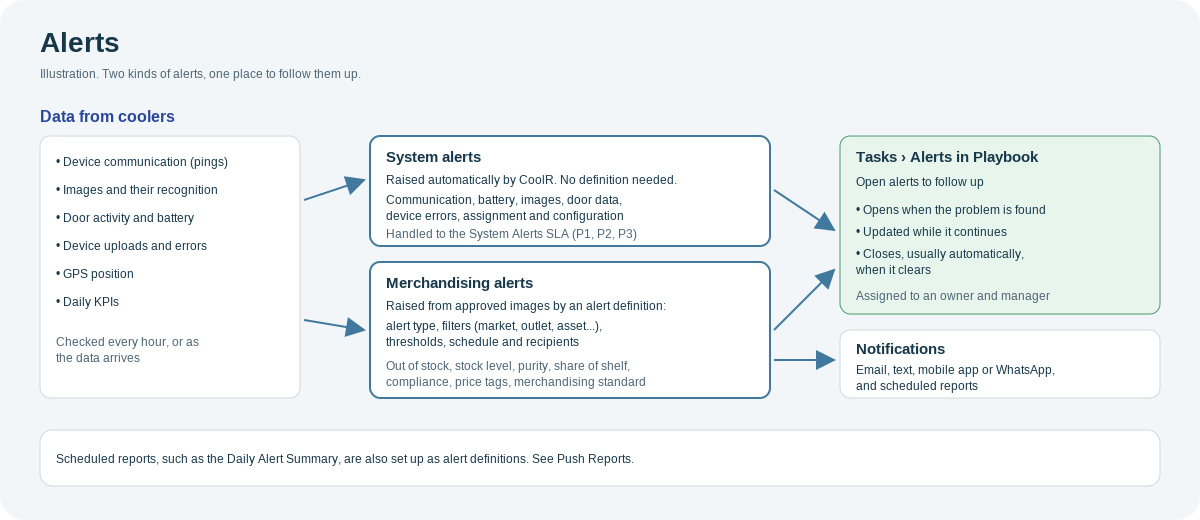
Open the full-size Alerts overview diagram.
Alert categories
| System alerts | Merchandising alerts | |
|---|---|---|
| What they report | Device and data health: communication, battery, missing or unusual images, door data, device errors, assignment and configuration | Shelf and product issues: out of stock, low stock, foreign products, share of shelf, planogram compliance, assortment, price tags |
| Raised by | CoolR, automatically | An active alert definition for your organization |
| When | Every hour, or when an image, device upload or daily KPI arrives | Each time an image is approved |
| Details | System Alerts and System Alerts SLA | Merchandising Alerts |
Scheduled email and file reports, such as the Daily Alert Summary, are also set up as alert definitions. See Push Reports.
Key concepts
- Alert type: what is checked, for example Product Out Of Stock or No Communication.
- Alert definition: turns on an alert type for your organization, with its filters, thresholds, schedule and recipients. System alerts need no definition.
- Recipients: the people, roles or contacts who are notified.
- Life cycle: an alert opens when the condition is found, is updated while it continues, and closes, usually automatically, when it clears. Open alerts are listed on Tasks > Alerts in Playbook.
What a definition sets
| Setting | What it does |
|---|---|
| Alert type and Name | Which check to run, and the definition's name. |
| Filters | Limit the definition to a Market, Classification, Outlet Type, Outlet, Distributor, Asset or Asset Type. An empty filter means all. |
| Thresholds | The values that raise the alert, such as Stock Threshold (%), Purity Threshold (%) or a product list. The fields depend on the alert type; see Merchandising Alerts. |
| Schedule | Start Date and End Date, and Alert Start Time and Alert End Time for the hours when the alert is active. |
| Alert Body and Email Template | The text and email layout of the notification. |
| Priority | The alert's priority. |
| Active | Turns the definition on or off. |
You can set several definitions for the same alert type, for example one per market with different thresholds. For example: notify the regional operations role when stock in a market falls below 80%, and notify the sales reps of one outlet type when it falls below 85%.
Recipients and delivery
Recipients are set on the definition's Recipients tab. Each recipient is active between its start and end dates.
| Recipient type | Who is notified |
|---|---|
| Role | Users with the role, for the outlets they are responsible for |
| User | A named user, for the outlets in their markets, classifications, key accounts and distributors |
| Outlet Contact | The outlet's contacts of a selected contact type |
| Email or Text address | A fixed email address or phone number |
A recipient can be notified by email, text message, mobile app notification or WhatsApp, or by their preferred channel.
Integrations
Set up and test alert definitions on the Alert Definition screen before relying on them in an integration. To read alerts into another system, see the Integration overview.
Best practices
- Start with conservative thresholds and adjust them using your history.
- Use role recipients for frequent alerts, and named users for critical ones.
- Send non-urgent alerts as a daily summary, such as the Daily Alert Summary.
- Keep a short runbook for each alert type, so the team knows what to do.
- Check new or changed definitions on a few outlets before using them widely.