
Appearance
Merchandising Recommendation: suggested facings based on sales
Merchandising Recommendation suggests how many facings each product should get in a cooler, based on how fast it sells. Enter the cooler's shelves and facings, and Playbook divides the space by each product's weekly sales and draws the resulting layout.
Merchandising Recommendation at a glance
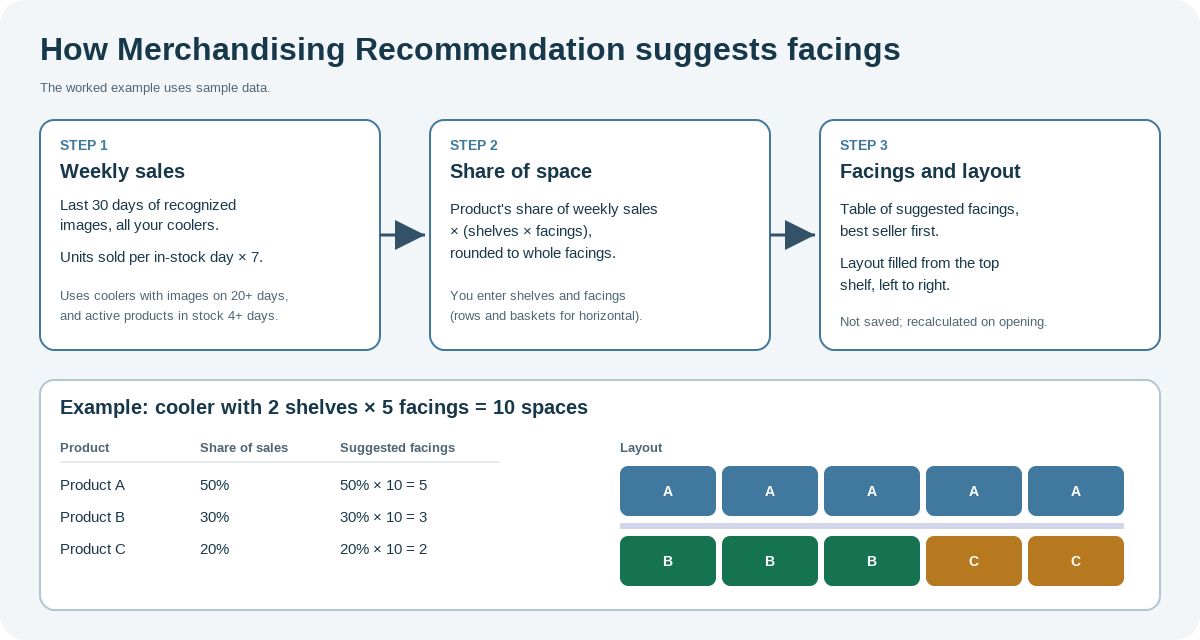
Open the full-size Merchandising Recommendation diagram.
When to use it
Use it when you plan or revise a planogram and want space to follow demand, so fast sellers get enough facings and run out less often between visits.
Who uses it
| Role | Typical use |
|---|---|
| Category and trade marketing managers | Check how to share space across the range before setting a planogram. |
| Planogram and merchandising teams | Get a demand-based starting layout for a given cooler size. |
| Sales and operations managers | Compare the suggested facings with what is on the shelf today. |
Why it helps
- Based on measured sales: uses sales measured from recognized cooler images, not estimates entered by hand.
- Fits your cooler: works with any number of shelves and facings, including horizontal coolers.
- Quick to read: shows a table of facings per product and a picture of the layout.
Where to find it
Select Analysis > Merchandising Recommendation in the menu. The screen opens with a cooler of 5 shelves and 5 facings.
How it works
- Weekly sales: Playbook uses the recognized images from the last 30 days across the coolers at the outlets you can see. For each product, it works out the units sold per day while the product was in stock, then converts that to a weekly rate.
- Share of space: Playbook applies each product's share of total weekly sales to the cooler's spaces (shelves × facings) and rounds the result to whole facings.
- Layout: products fill the cooler from the top shelf, left to right, best seller first, until the cooler is full.
Playbook uses only data that gives a reliable sales rate:
- Coolers with recognized images on at least 20 of the last 30 days.
- Active products that were in stock on at least 4 days and sold at least once.
The recommendation covers all the outlets you can see in Playbook, not a single outlet or cooler. If your access is limited to certain markets, outlets or accounts, it uses only their coolers. Playbook recalculates it each time you open the screen and does not save it.
Using the screen
- Enter the number of Shelves and Facings per shelf for the cooler you are planning. Both must be whole numbers greater than zero.
- Select Apply.
- Read the table. It lists each product with its Suggested Facings, best seller first.
- Check the layout on the right. Each space shows a product image; hover over it to see the product name. Empty spaces stay blank.
For a chest or horizontal cooler, turn on Horizontal cooler. The inputs change to Rows and Baskets, and the layout is drawn in columns. After you change any input, select Apply again.
Why you might not see something
- No data message: no cooler had enough recognized images in the last 30 days, or no product met the conditions above.
- A product is missing from the table: its share rounded to zero facings, or the cooler was already full when its turn came. Try a larger cooler size.
- The suggested facings do not add up to the cooler size: each product's facings are rounded separately, so the total can differ slightly from shelves × facings. The layout stops when the cooler is full.
- The screen is not in your menu: your role does not include it. Contact your administrator.
Tips
- Enter the actual number of shelves and facings of the cooler model you are planning, so the share of space matches what fits.
- Use the result as a starting point. Adjust it for must-have products, launches and promotions, which the recommendation does not consider.
- Build the final layout in Planograms.
Related pages
Last updated: November 13, 2026. Screens and options vary with your role and your organization's setup.