
Appearance
Global View: see data for several clients together
With Global View, you see data for several clients on one screen, without signing out or switching client. Sign in once, then add clients in the Clients filter at the top of the screen. The same filter bar narrows the data by market, channel, classification, key account and more, and on some screens groups the results, for example by client.
Global View at a glance
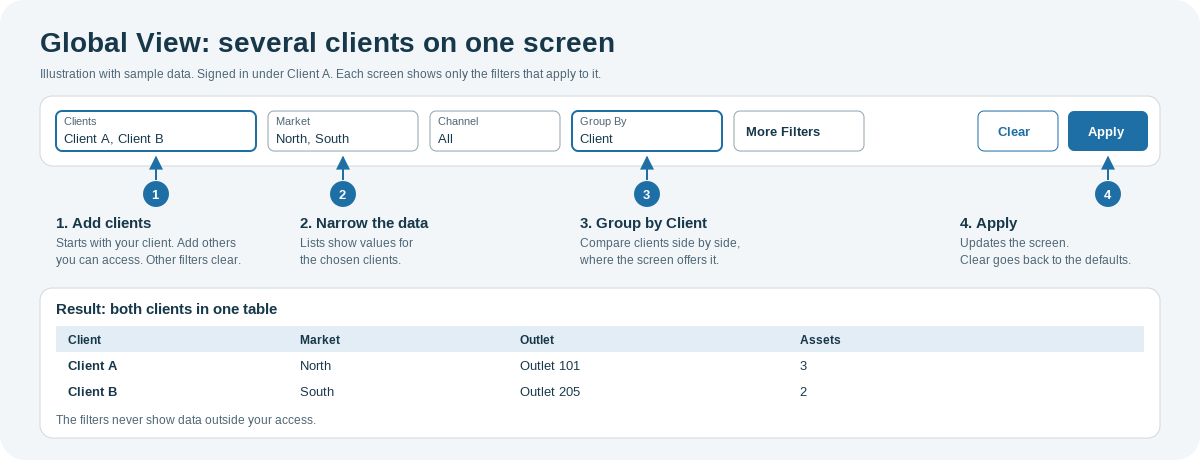
Open the full-size Global View diagram.
When to use it
- To see outlets, assets or performance for all your clients on one screen.
- To compare clients side by side by grouping the table by Client.
- To focus on one market, channel or key account across several clients.
Who uses it
| Role | Typical use |
|---|---|
| Users linked to several clients | See all their clients at once instead of signing in to each one. |
| Administrators | Review data across the clients they manage. |
| Managers and analysts | Compare clients, markets and channels on the same screen. |
Access is role-based
You can choose more than one client only if you are an administrator or your account is linked to several clients. Otherwise, Clients shows your client and cannot be changed.
Why it helps
- One sign-in, many clients: see another client's data without signing out and back in.
- Side-by-side comparison: group by Client to see each client's figures in the same table.
- Same filters everywhere: the filter bar works the same way on every screen that has it.
- Several values at once: every filter accepts more than one value, for example two clients and three markets.
Where to find it
The filter bar is at the top of screens such as Outlets, Reorder, Business Performance, Asset Performance, Score Card and Missed Opportunity. Some History and Logs screens have it too, such as Sales, Device Tracking and VistaZ Battery Analysis. Each screen shows only the filters that apply to it.
How it works
Clients
Clients starts with the client you signed in under. Add the other clients you want to see; the list shows only the clients you can access.
Changing Clients clears the other filters. Their lists then reload with the markets, channels, classifications and distributors of the clients you chose.
Filters and grouping
| Option | What it does |
|---|---|
| Clients | Shows the data of every client you choose, together. |
| Market, Channel, Classification, Key Account | Show only the data for the values you choose, across the chosen clients. |
| Distributor, Route, Outlet, Asset and others | Appear only on screens where they apply. |
| Group By | On some screens, groups the table by an option such as Client, Market, Channel, Distributor, Classification or Key Account. |
The filters never show data outside your access. See Access, roles and permissions.
Using the screen
- In Clients, add the clients you want to see.
- Choose values in the other filters. Filters that do not fit on the bar are under More Filters.
- To compare clients, choose Client in Group By, if the screen offers it.
- Select Apply to update the screen. To go back to the screen's default filters, select Clear.
On a phone, all the filters are under Filters.
On Outlets, you can also save your filters as a named preference and make one your default.
Why you might not see something
- Clients cannot be changed: your account is linked to only one client.
- A client is missing from the list: you do not have access to it.
- A market or channel is missing: it does not belong to the clients you chose.
- There is no filter bar or no Group By: the screen does not offer it.
Tips
- Choose Clients first, then the other filters, because changing clients clears them.
- More Filters shows how many of its filters are applied. To see which ones, point to the button.
Related pages
Last updated: November 17, 2026. Screens and options vary with your role and your organization's setup.