Asset Type
Define equipment models on the Asset Type screen. These records appear in the Asset Type dropdown when you create or edit an asset.
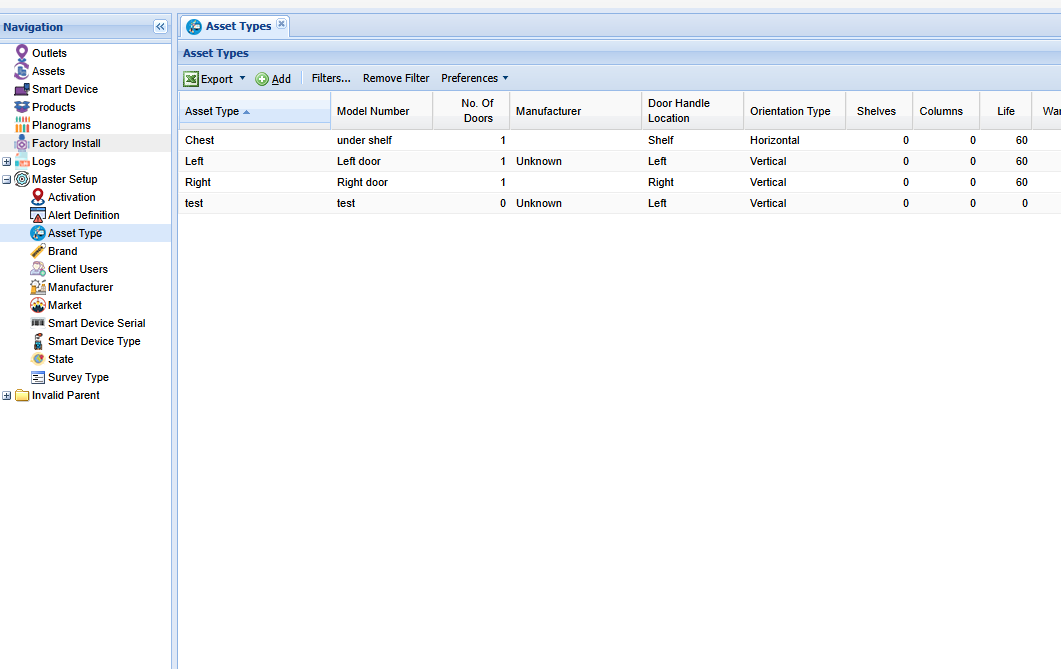
Click on the Asset Type menu from the left sidebar under Master Setup on CoolR Portal. You will see the Asset Type screen on the right.
Add New Asset Type
Click the Add button on the Actions ribbon. You will see the Asset Type Details Form. Fields marked in red are required.
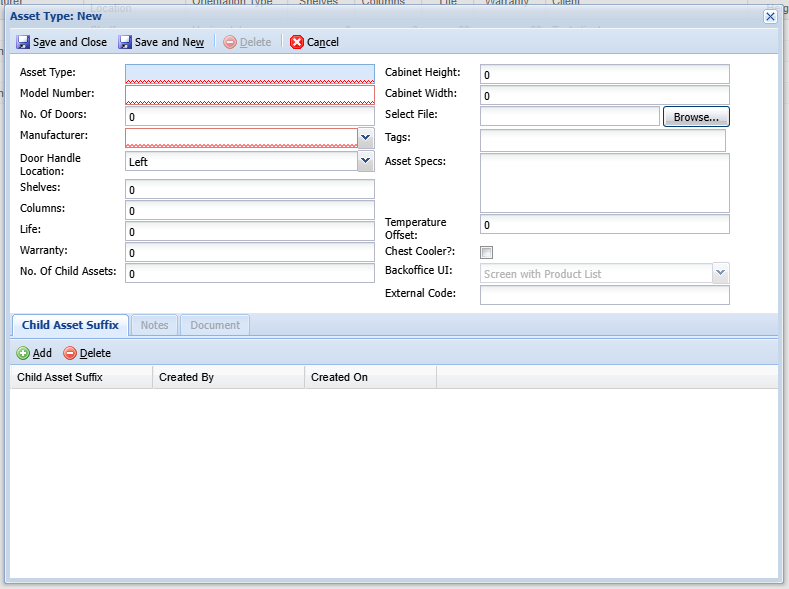
- Complete the required fields.
- You can select or define all information in that screen including a photo of the Asset.
- Select Save and Close to save the Asset Type.
- The new Type appears in the list.
Edit an Asset Type
Double-click the Asset Type to open its details form.
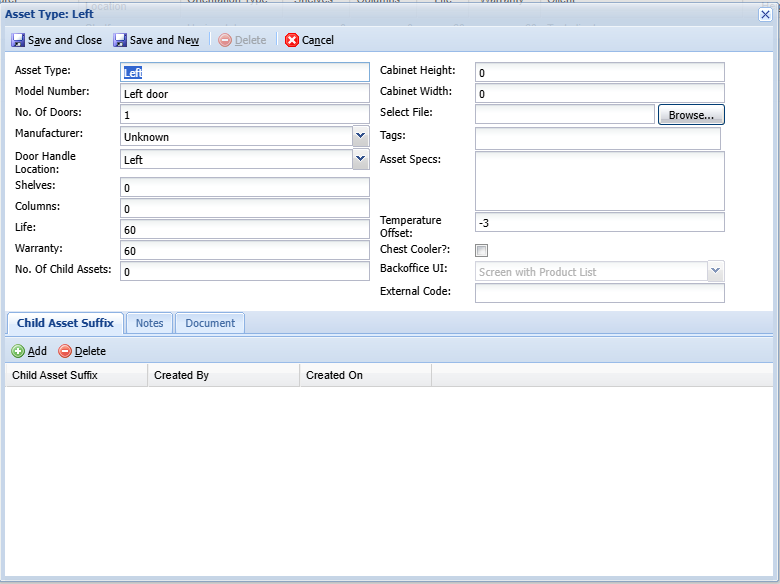
- Update the relevant fields.
- Select Save and Close to save the Asset Type.
- The updated record appears in the list.
Asset Type Configuration for Multi-Door Assets
To configure an Asset type for multi-door Assets, the No. of Child Assets field should be configured.